
If you're a personal trainer, hairstylist, coach, photographer, or any service professional who sells your time, you already know this cycle: a client messages you, you ask what day works for them, they respond two days later, you suggest a time, they can't make it, you suggest another, and by the time you finally land on something, three days have passed. Some clients never reply at all.
An online booking system breaks that cycle completely. The client opens your link, sees your real-time availability, picks a date and time, and confirms. You don't have to do a thing. The appointment is already on your calendar.
- With Puny.bz you can create an online booking page for free in under 10 minutes.
- Clients see your real availability and book themselves, no back-and-forth needed.
- You configure working days, hours, service duration, price, and buffer time between appointments.
- You get a notification for every booking and see all appointments in your dashboard.
Why scheduling through WhatsApp is costing you clients
According to Zippia Research, 40% of online bookings happen outside business hours — evenings and weekends. If WhatsApp is your only booking channel, you're missing every client who doesn't want to wait for you to be online and available to respond.
Manual scheduling also has hidden costs: unanswered messages, double-booked slots when you're tracking things on paper, and time spent on back-and-forth that you could spend working or resting. An online booking system isn't a luxury for big businesses. It's the difference between being available 24/7 and only being reachable when you're awake with your phone in hand.
What you need to get started
All you need is a Puny.bz account and three pieces of information: your service name, how long it takes, and what you charge. That's it. No technical knowledge required, no one to hire, and no paid apps to subscribe to.
How to set up your booking system in Puny.bz: step by step
Step 1 — Create a Booking Puny
Log into your dashboard at portal.puny.bz and go to the Punies section. You'll see all your active cards. In the bottom right corner there's a blue + button. Tap it.
A modal opens showing all available Puny types: Shop, Catalog, Paywall, Gallery, Form, and Booking. Select Booking — "Schedule appointments easily". Puny automatically creates your booking page and takes you to the editor.
Screen: Select Booking type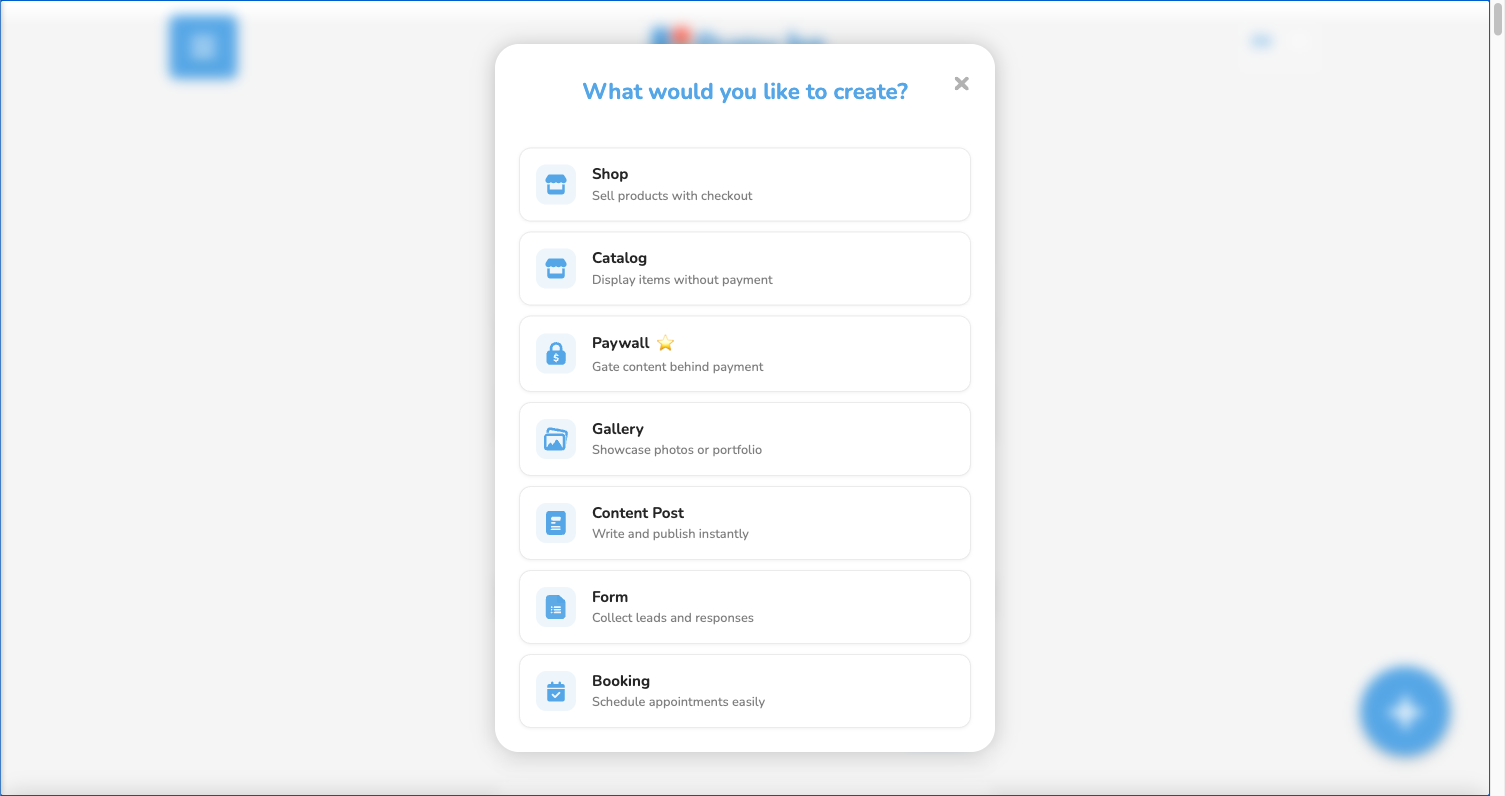
Step 2 — Set up your service details
The editor has 5 tabs: Essentials, Availability, Enhance, Payments and Advanced. Start with Essentials, where you define what you offer.
Here you configure three key things:
- Service name: The first thing clients see. Be specific — "Photography Session", "Haircut & Beard", "1-on-1 Yoga Class".
- Duration: How long the service takes. Options range from 15 minutes to 4 hours.
- Price: What you charge. Set it to $0 if the appointment is free or just for consultation.
You can also write a service description and upload a cover photo. A strong photo builds client confidence before they even book.
Screen: Editor → Essentials tab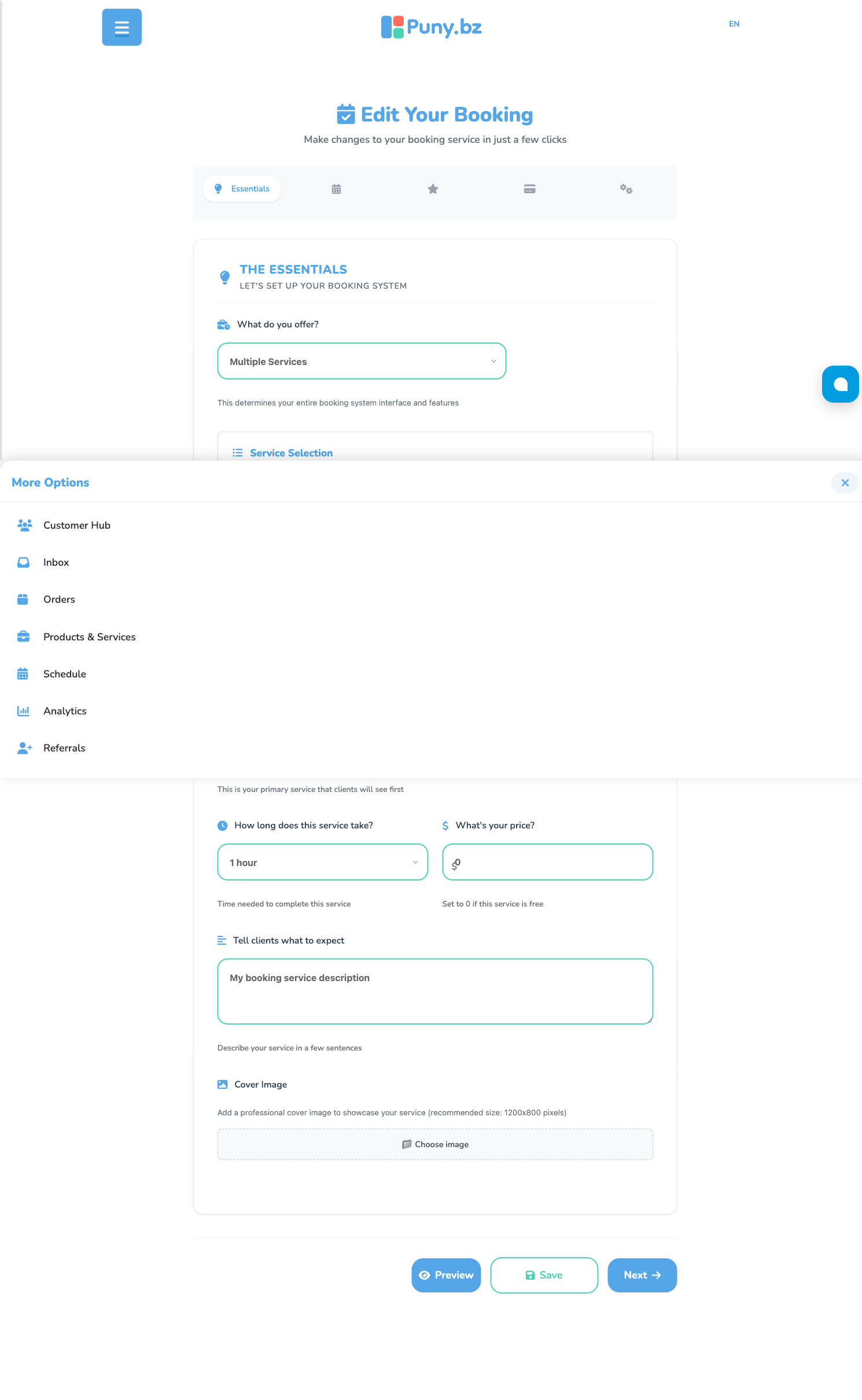
Step 3 — Define your availability
Move to the Availability tab. This is the most important section — it tells the system when you're open for bookings.
There are four main settings:
- How far ahead can clients book? Defaults to 30 days. Increase or reduce as needed.
- Buffer time between appointments: The gap you need between clients. Defaults to 15 minutes — enough to clean up, prep materials, or drive to your next location if you work on-site.
- Available days and hours: Toggle on the days you work and set your time range. For example, Monday to Friday from 9 AM to 6 PM.
- Blocked dates: Vacations, holidays, or specific days you're unavailable. Clients won't see those dates as open.
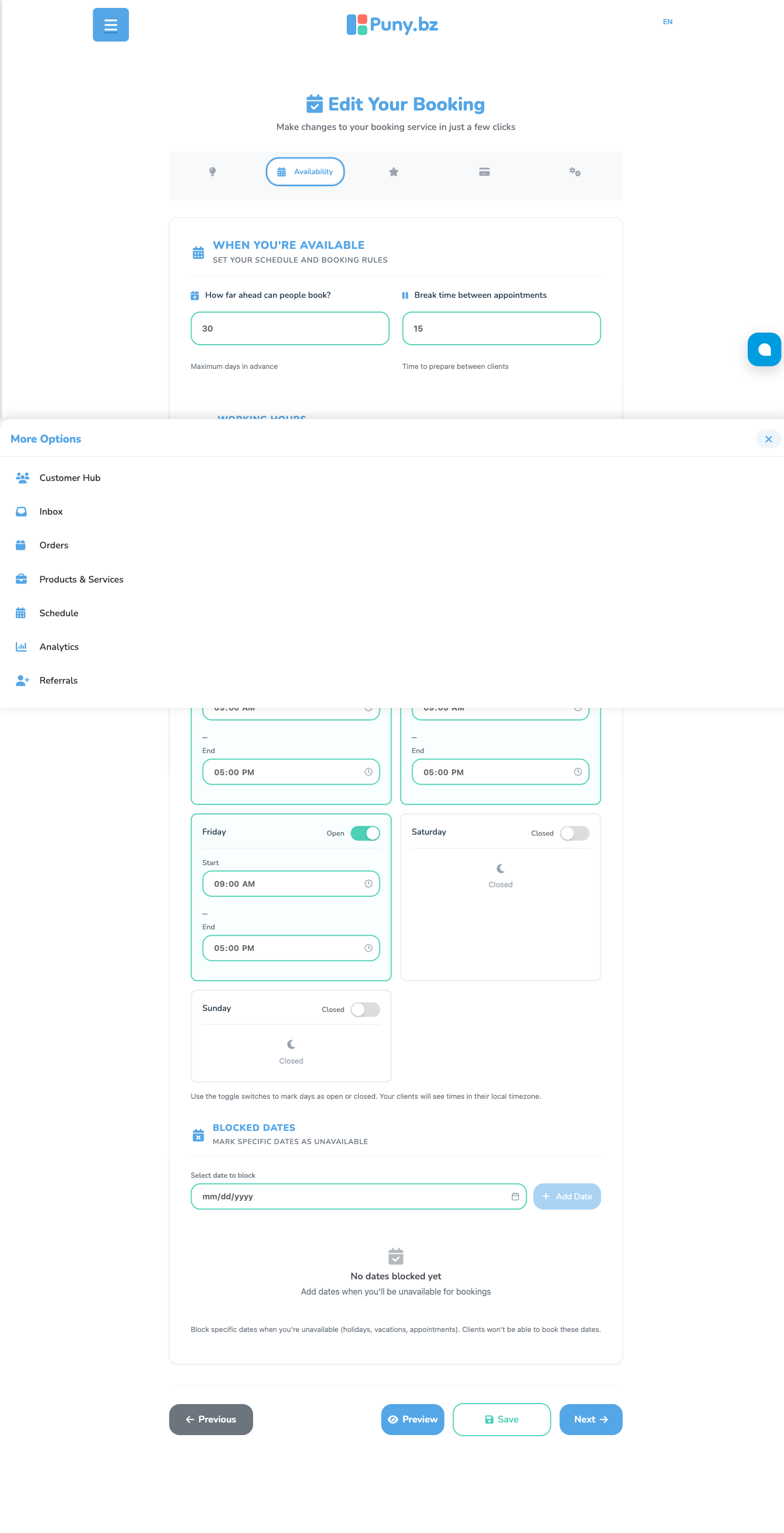
The system automatically calculates available slots based on your schedule. If you have a 60-minute appointment at 10 AM with a 15-minute buffer, the next available slot will show as 11:15 AM.
Step 4 — Save and share your booking link
Once you've set up Essentials and Availability, hit Save. Puny generates a unique link for your booking page — something like puny.cards/your-service. Copy it and share it wherever your clients are:
- In your Instagram bio
- In your WhatsApp or TikTok stories
- In reply to clients who ask "are you available?"
- In your email signature
- On your Google Business Profile
From that moment, anyone can open it, see your available times and book without needing to message you first. You get the notification and the appointment appears on your schedule.
What clients see on your booking page
When a client opens your link, they see a clean page with your service photo, name, description, duration and price. Below that is an interactive calendar. They pick an available date, then a time slot, fill in their name and contact info, and confirm. The whole process takes under two minutes.
Public view: what the client sees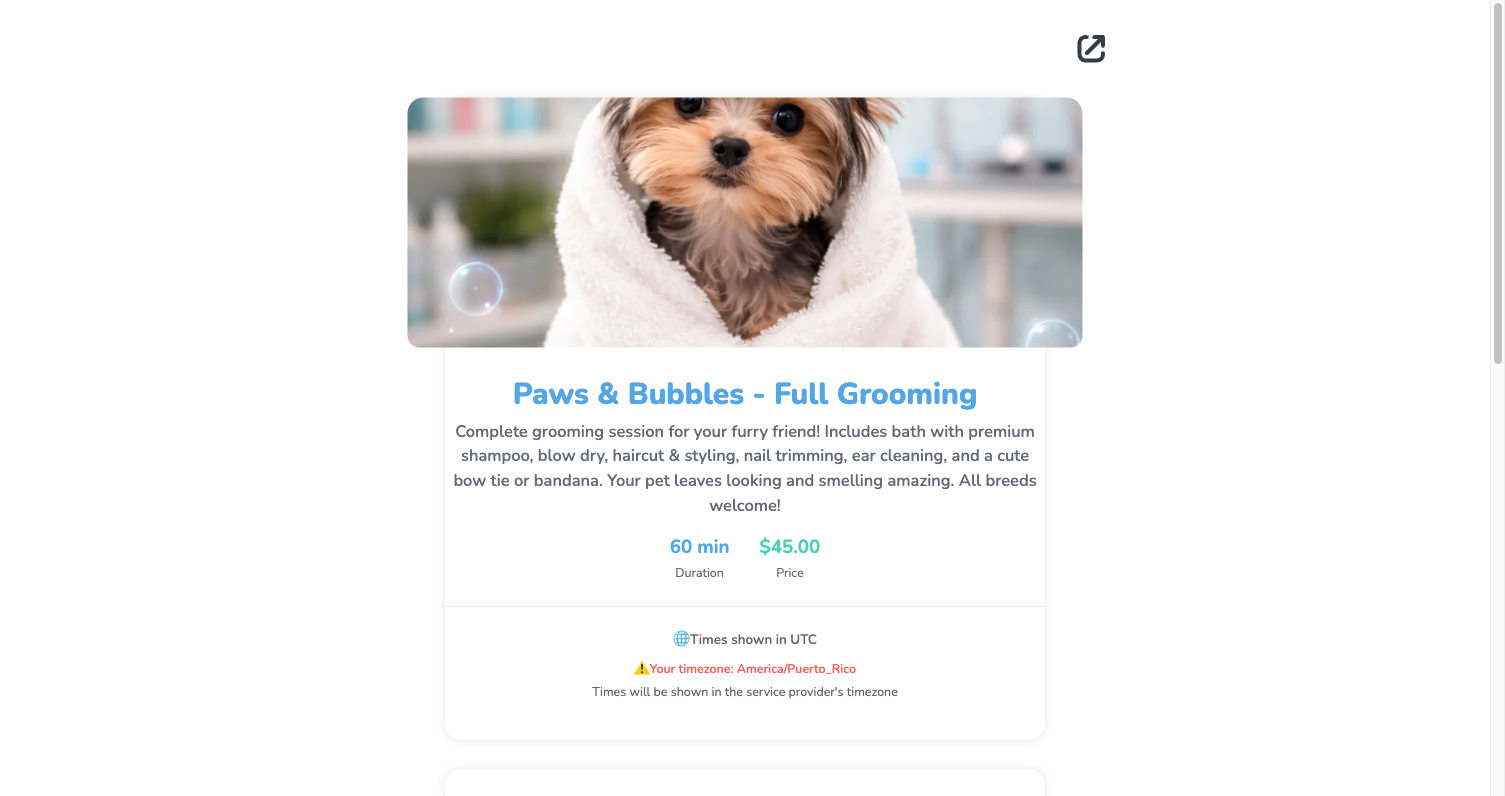
The client gets an automatic confirmation. You get a notification with all the details: client name, service, date and time. No WhatsApp back-and-forth.
How you manage your appointments in the dashboard
All confirmed bookings appear in the Schedule section of your dashboard. You can view today, the full week, or the month, and each appointment shows the client's details. If you need to reschedule or cancel, you do it from there.
Screen: your schedule in the dashboard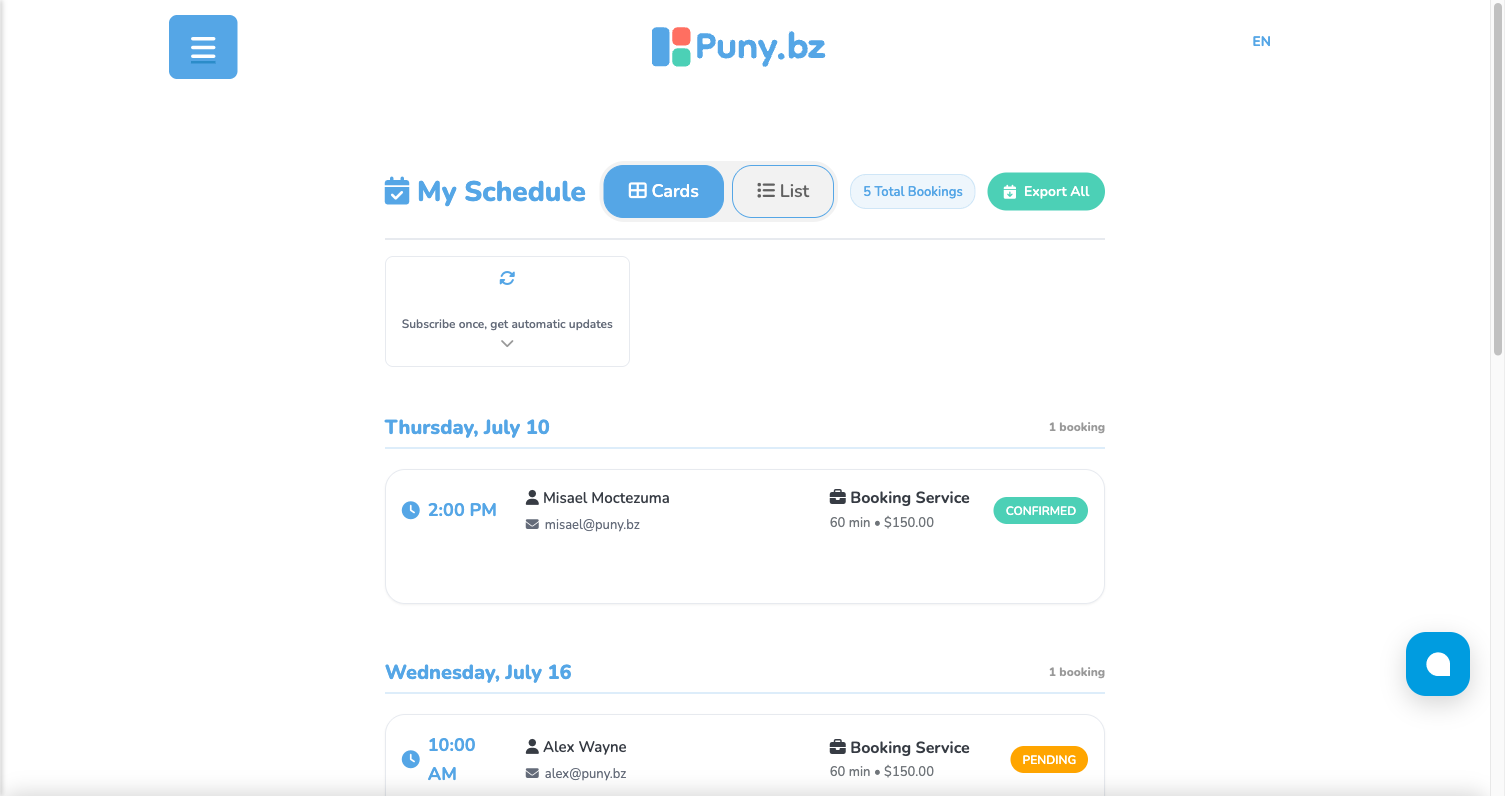
Puny.bz vs. other booking apps: which is right for you
Tools like Calendly, Acuity Scheduling, or SimplyBook do one thing well: manage appointments. But if you also need to display your services, take payments, receive orders, or have a public business profile, you end up paying for three or four separate apps.
| Feature | Puny.bz | Calendly | Acuity |
|---|---|---|---|
| Online booking | Included | Included | Included |
| Service catalog | Included | No | No |
| Payment at booking | Included | Paid plan | Paid plan |
| Public business profile | Included | No | No |
| ATH Móvil support | Included | No | No |
| Real free plan | Yes | Limited | Trial only |
If you're a solopreneur or small service business, Puny.bz is built so you have everything in one place instead of paying for multiple apps separately.
Frequently asked questions about online appointment booking
Can I accept appointments online for free?
Yes. With Puny.bz you can create an online booking page and accept appointments at no cost to start. The free plan includes the Booking feature with availability settings, automatic confirmations and schedule management.
What's the difference between Puny.bz and Calendly?
Calendly is exclusively for scheduling meetings. Puny.bz combines appointment booking with your business profile, service catalog, payments and more — all in one tool. It's built specifically for service businesses in Puerto Rico and Latin America, with native ATH Móvil support.
Do clients get an automatic confirmation when they book?
Yes. When a client completes a booking, the system sends an automatic confirmation with the appointment details. You also receive a notification in your dashboard and by email.
Can I charge clients at the time of booking?
Yes. In the Payments tab of the Booking editor you can enable payment at booking. Puny.bz supports credit cards, debit cards and ATH Móvil. You can also collect payment when the client arrives.
Can I offer multiple services on one booking page?
Yes. You can set your Booking to single-service mode (ideal for coaches or photographers with one main offer) or multiple-services mode (ideal for salons, spas, or businesses with several appointment types). In multiple mode, clients pick the service before selecting a time slot.
Every appointment you coordinate manually through WhatsApp is time you're not spending on your work or your life. An online booking page isn't more technology — it's getting your time back and giving every client a professional experience from the very first interaction. With Puny.bz it's ready in under 10 minutes, completely free to start.